Summary: in this tutorial, you will learn how to use the Oracle Data Pump Export (expdp) utility to unload data (and metadata) from the Oracle database.
Introduction to Oracle Data Pump Export tool #
Oracle Data Pump Export is a built-in utility program for unloading data and metadata into a set of dump files. The dump file set then can be imported by the Data Pump Import utility on the same or another Oracle Database system.
The dump file set contains table data, database object metadata, and control information that are written in an Oracle-proprietary, binary format.
The Data Pump Export works on the server only, therefore, it typically deals with directory object that maps to physical directories on the database server. The Export Data Pump tool does not write to the file system on your client computer.
Notice that Oracle introduced the Data Pump Export utility starting in Oracle 10g. The Data pump Export is a replacement for the old Export utility.
According to Oracle, the new Data Pump Export can be up to 40 times faster. Here are some notable features of the Oracle Data Pump Export tool:
- Compression of output files
- Encryption
- Export via network link
- Parallelism
- Using a subquery to export partial data.
- Renaming tables/schemas/tablespaces
Calling Data Pump Export program #
You invoke the Data Pump Export program using the expdp command. The behaviors of the program are determined by the parameters specified either on the command line or in a parameter file.
expdpCode language: SQL (Structured Query Language) (sql)Oracle Data Pump Export example #
Step 1. Create a new directory to store the exported file in the home directory (/home/oracle/)
mkdir exportCode language: JavaScript (javascript)Step 2. Connect to the Oracle Database server using sqlplus using the ot username and password:
sqlplusStep 3. Create a new directory object ot_external that maps to the /home/oracle/export directory:
CREATE OR REPLACE DIRECTORY ot_external AS '/home/oracle/export';Code language: SQL (Structured Query Language) (sql)Step 4. Exit sqlplus:
exitCode language: PHP (php)Step 5. Create a parameter file named customer.par with the following contents and place the file in the ~/export directory:
userid=ot@freepdb1/oracle
directory=ot_external
dumpfile=customer_exp%U.dmp
logfile=customer_exp.log
filesize=50K
tables=customers
In this parameter file:
- The first line specifies the user (
ot) and password (oracle) for connecting to the Oracle database using service name (freepdb1). - The second line indicates the directory object (
ot_external) which maps to the output directory that stores the dump file set. - The dump files will have names
customer_exp1.dmp,customer_exp2.dmp, … The sequence number is generated based on the%Uwildcard. - The tool will writes log messages into the
customer_exp.logfile. - Each dump file will have a maximum size of 50KB. If a dump file has a size exceeding 50K, the Data Pump Export tool will create the next dump file. The valid range of the dump files is from 50K to 16TB.
- The Data Pump Export will export only the
customerstable specified by the last line in the parameter filetables=customers.
Step 7. Invoke the Data Pump Export program to export the customers table to the dump files:
expdp parfile=~/export/customer.parCode language: SQL (Structured Query Language) (sql)Here’s the dump file set:
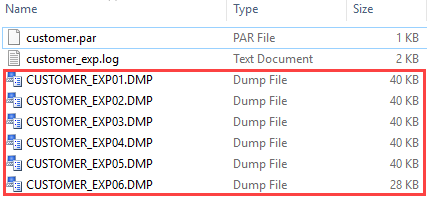
Now, it is your turn to export all objects in the OT schema to the dump files by creating a new parameter file (ot.par) with the following contents:
userid=ot@freepdb/oracle
directory=ot_external
dumpfile=ot_exp%U.dmp
logfile=ot_exp.log
filesize=50K
schemas=ot
Run this command:
expdp parfile=~/export/ot.parCode language: SQL (Structured Query Language) (sql)Summary #
- Use the Oracle Data Pump Export utility program to unload data and metadata from the Oracle database.

